ROOT Administrator User Guide
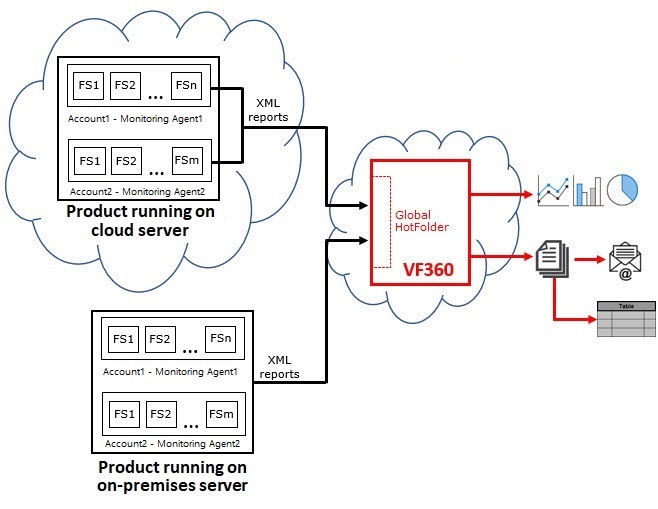
ViewFlow360 (VF360) is a cloud service whose purpose is to monitor the utilization of servers which run workflows in the cloud or on premises. You can monitor modules in the software product and/or server parameters.
VF360 provides utilization information of predefined workflow steps per account, and also provides reports and alerts related to the workflow server usage.
 In the image above, FS are the monitored flow steps in the product workflow.
On each server which runs a product you want to monitor, you need to install a software application named Monitoring Agent. It is a standalone Windows application, compatible with Windows servers 2008, 2012, 2016, 2019 and with Windows 10.
The Monitoring Agent collects data on the server and sends to the local server two types of XML reports:
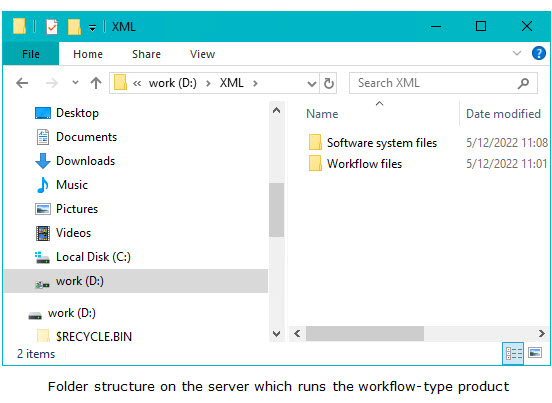
Workflow XML files (to the XML/Workflow Files folder). These reports can also be uploaded using the XMP upload mechanism.
System XML files (to the XML/Software System Files folder)
The gathered information flow is described in the picture below:
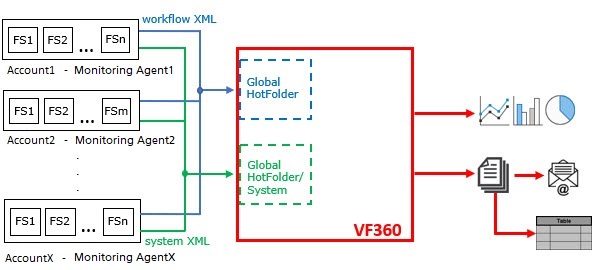
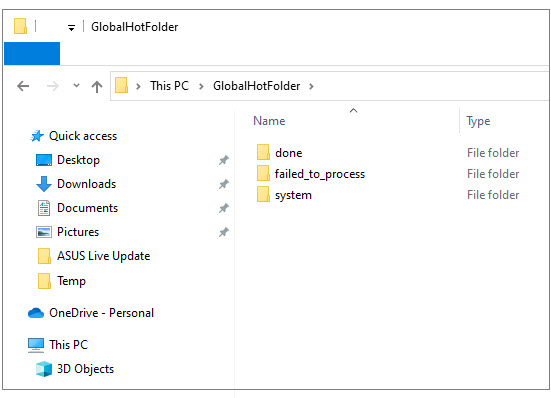
The reports in the Workflow Files directory are transferred to the VF360 GlobalHotFolder directory, while the reports in the Software System Files are transferred to the VF360 GlobalHotFolder/System directory, where they are validated.
The reports which fail validation are placed in GlobalHotFolder/failed_to_process or in GlobalHotFolder/System/failed_to_process.
Those which pass validation are parsed and the collected data is uploaded into VF360 for processing. The reports are then placed in GlobalHotFolder/done, or in GlobalHotFolder/System/done.
You must program the flow steps in the workflow to generate and send these status reports in XML format. VF360 receives the reports from all the accounts in its GlobalHotFolder, processes them, and generates reports regarding the activity of the workflow servers, as well as separate data for each account in the form of dashboards, graphs, and tables. VF360 can also send reports and notifications to the designated users.
The VF360 system administrator defines a pool of flow steps accessible to all the accounts, so an account can monitor any flow step in their own workflow, which is also defined in the VF360 pool.
NOTE:
For each flow step, a Credit Counter in VF360 counts the processed log files and can notify when a predefined threshold number is reached.
The VF360 users can view/edit the different features in the system according to their permissions:
The Root Administrator is the only user with permission to create and modify all the settings in VF360.
The Global Users set by the root administrator with read/write permission can see and edit data in all the screens in the Account's views. For detailed information, see the Global Users Guide.
The Global Users set by the administrator with read-only permission can only view the data in the all the Account's views. For detailed information, see the Global Users Permissions.
For details on how to create global users, see How to add Global Users.
The Monitoring Users are users who have limited administrator permissions to manage the accounts belonging to their configuration. For detailed information, see the Monitoring User Guide.
For details on how to create monitoring users, see How to add Monitoring User.
The Organization Users are users who can manage the accounts belonging to their configuration. The Organization Admin User can add the user roles, such as Organization User, Account, and Account User in the system under their respective organization. For details on how to create an organization, see How to add an Organization.
The users defined in the Accounts section as regular users can only view the information of their own company (account) and edit some of the settings. For detailed information, see the Account Admin Guide.
For details on how to create accounts, see How to add Accounts.
For information regarding the VF360 login, see Log into ViewFlow360.
The workflow
This document refers to Coretex as the workflow system.
An account is a tenant on the workflow server, which is represented by a top folder in the Plan Tree.
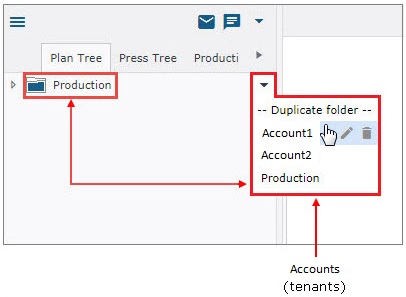
The workflow flow steps
VF360 receives reports from different accounts, who have different workflows with different flow steps.
Each flow step has:
a flow step type (predefined in Coretex and fixed)
a flow step name (a name of your choice, actually used in the workflow)
There is a limited number of flow step types, but an unlimited number of flow step names. Regardless of the flow step name in the workflow, VF360 always displays the information under the flow step type.
Coretex provides the association between the flow step name and the flow step type in the XML status report.
EXAMPLE:
In this example, Account1 has named their ctp type flow step CTP1, while Account2 has named it PLATE1.
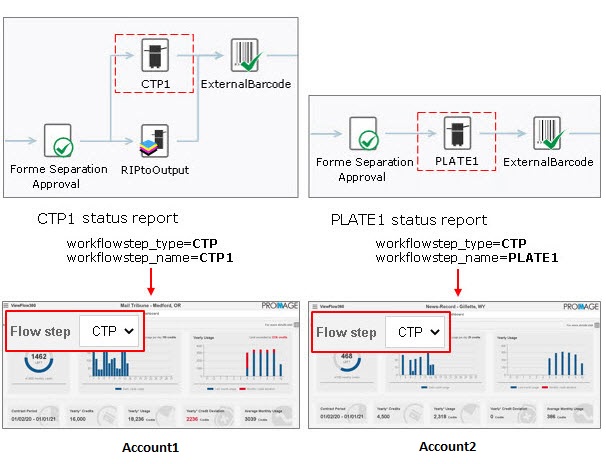
Each account sees in their dashboard their own data, but under the flow step type, not under the actual name they have given in their workflow.
You can see in this example of XML status report for CTP1, the flow step type and the flow step name:
<?xml version="1.0" encoding="UTF-8" standalone="true"?>
<events xsi:noNamespaceSchemaLocation="events.xsd" xmlns:xsi="http://www.w3.org/2001/XMLSchema-instance"><event option5="" option4="" option3="" option2="" option1="" double_size="1" errorDescription="" state="ok" time="7:29:23" date="2023-04-17" time_stamp="2023-04-17 7:29:23" resource_name="LOCALMANAGER-PDFC-2" original_name="ABRN-061021-04-IE-NW-BS-R0.PDF" audit="" user="SysTech" workflowstep_name="PDF Pairing" workflowstep_type="impose" version="2" book="0_plates" section="" zone_name="ce" edition_name="abrn" publication_name="abrn" publication_date="2021-11-21" name="3_20" color="none" type="form" tenant_id="111111111" customer_name="ABP"/></events>
Messages and notifications
The types of messages and notifications a user receives are determined by the type of user they are (global user, account user) and the notification options you select for your user in VF360.
For the complete set of messages, see The VF360 Notifications.
Set up the workflow, Coretex in this case. For detailed information, see Set Up the Coretex System.
Set up VF360. For detailed information, see Set Up the VF360 System.