The VF360 ACCOUNTS And Users
Use the Accounts section to view and manage the accounts in the system.
Select in the drop-down list in the Records per Page field, the number of table rows you want to display on the screen at a time. To browse through the pages, use the 
 buttons.
Use the Account Search dynamic search to limit the display to specific account.
In the Accounts view you can find information regarding the existing ones:
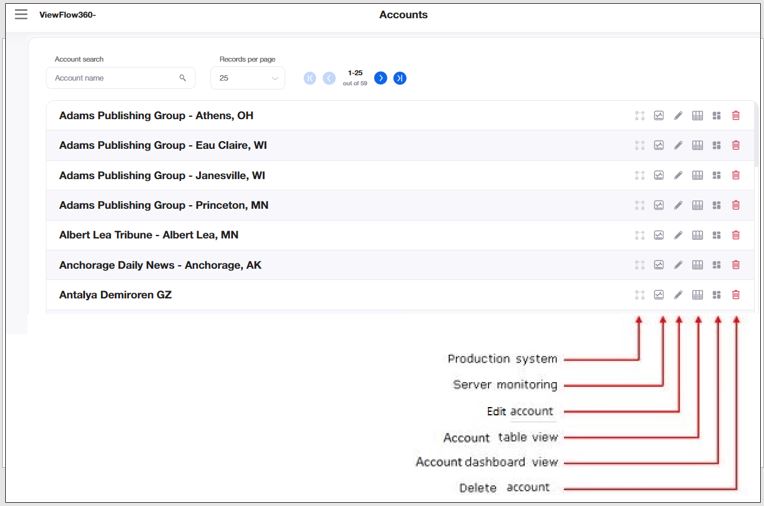
 For Cloud accounts only. You configure it in the Account Contract Settings.
Use the Production System feature to navigate from VF360 straight to the Coretex system, without having to enter your user credentials.
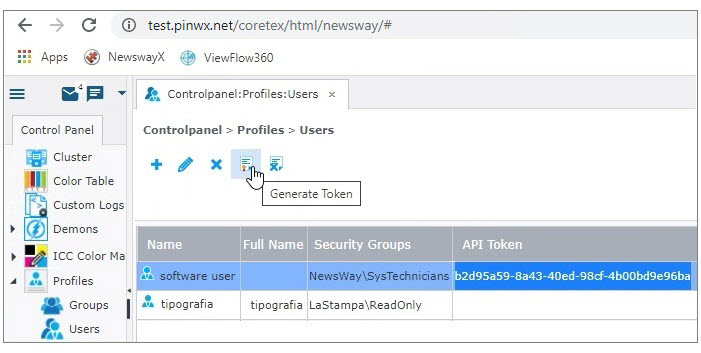
In Coretex, each account is represented by a folder, which VF360 monitors. On the account side, you can define a generic software user (not a real user) for the purpose of connecting from VF360 straight to Coretex. This user must have a password in NewsWayX(NWX). For this user you need to generate an API token, which allows the users belonging to that specific account to connect to Coretex without having to introduce their own user credentials.
All changes done on NWX XML that is sent to ViewFlow360 is supported from version NWX-6.0.0.2.97975.
Older versions of NWX version are supported; however not all new reports and new features functions as expected.
In Coretex, in Control Panel > Profiles > Users, select Generate Token. The token automatically appears in the API Token column.
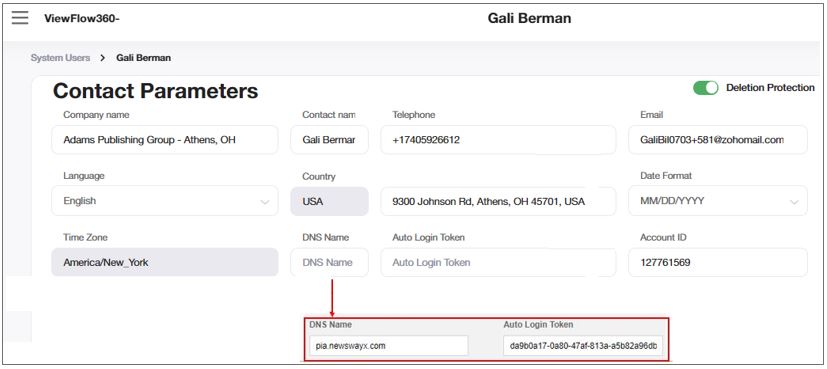
To use this feature, you must first define the DNS of the cloud where Coretex runs, in VF360,  > Accounts and Users > Accounts >
  Edit Account > Contact Parameters > URL.
You must also enter the API token in Menu > Accounts and Users > Accounts > Edit Account > Contact Parameters > Auto Login Token.
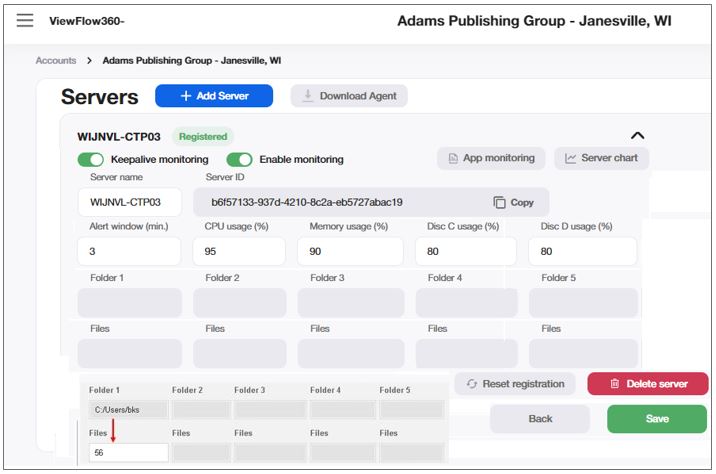
Use the Server Monitoring to manage the security codes for the monitoring agent installers and to manage the servers available for the existing accounts.
|
Field |
Description |
|---|---|
|
DOWNLOAD MONITORING AGENT |
Select to download the monitoring agent application. |
|
KEEPALIVE MONITORING |
Switch this toggle button ON to turn the hardware keepalive monitoring ON. |
|
ENABLE MONITORING |
Switch this toggle button ON to turn the hardware monitoring and the hardware KeepAlive monitoring ON. If the button is OFF, the hardware errors and the No KeepAlive messages are not registered. The hardware No KeepAlive state is possible only after at least one KeepAlive message has been received. Enabling monitoring without connecting the real Monitoring Agent service does not set the account in the hardware No KeepAlive mode. |
|
SERVER MONITORING STATUS |
Default value Not Registered. Once the Monitoring Agent registration during setup is successfully completed, the status becomes Registered. |
|
SERVER NAME |
Enter the server name (max. 20 characters). |
|
SERVER ID |
View-only field. The Server ID is generated after a new server has been added. This ID is used for the connection with the Monitoring Agent service later on. The Server ID can be used only once. In case any Monitoring Agent parameter is modified, the registration must be reset by selecting Reset Registration. After a Reset Registration, a new Server ID is generated and must be used during Monitoring Agent installation. |
|
APP MONITORING |
Click this App Monitoring navigates to the Application Monitoring page . |
|
SERVER CHART |
Click this Server Chart navigates to the Chart View page where you can view the CPU, Memory, and Driver utilization for the selected server. |
|
ALERT WINDOW (min) |
Enter the time (in minutes) the server must be in an error state to be counted as an error. The value may only contain digits, the maximum value being 999 minutes. |
|
CPU USAGE (%) |
Enter the threshold for CPU usage. If the values sent by the monitoring agent exceed this threshold for a longer period of time than the alert window, the CPU module is considered in hardware error state. The value may only contain digits, the maximum value being 100. |
|
MEMORY USAGE (%) |
Enter the threshold for memory usage. If the values sent by the monitoring agent exceed this threshold for a longer period of time than the alert window, the Memory module is considered in hardware error state. The value may only contain digits, the maximum value being 100. |
|
DISK C USAGE (%) |
Enter the threshold for disk C usage. If the values sent by the monitoring agent exceed this threshold for a longer period of time than the alert window, the Disk C module is considered in hardware error state. The value may only contain digits, the maximum value being 100. |
|
DISK D USAGE (%) |
Enter the threshold for disk D usage. If the values sent by the monitoring agent exceed this threshold for a longer period of time than the alert window, the Disk D module is considered in hardware error state. The value may only contain digits, the maximum value being 100. |
|
FOLDER |
View-only field. During Monitoring Agent installation, you can define up to five folders to be monitored. The Monitoring Agent automatically sends the paths to the folders to VF360 and they appear in the Folder fields. Each Folder has a corresponding File field. |
|
FILES |
The default state is inactive. Becomes active when the Server monitoring status becomes Registered. If you turn the GB toggle button ON, the field is renamed GB (gigabytes) and 100 is automatically filled in. If you turn the GB toggle button OFF, the field’s name changes back to ‘Files AND ‘1000’ is automatically filled in. If the values sent by the Monitoring Agent exceed the threshold you set in this field for more than the minutes set in the Alert window, the Account is considered in Server (Hardware) error state for the ‘Folder (1-5)’ module. |
|
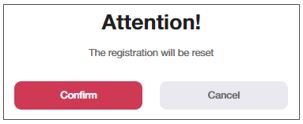
RESET REGISTRATION |
Use this button to cancel the server registration.
If you confirm, then:
|
|
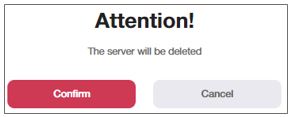
DELETE SERVER |
Use this button to delete the server from the system.
|
As an engineer working with NewsWayX servers monitoring on the Amazon servers, you may want to receive timely alerts on the apps that are down on your server and to react quicker to the problems. This may be due to the app unavailability that causes on your premises. A new function "App Monitoring" added to the server monitoring functionality helps you fixing the issues/errors.
The error is reported when the app is “down” for a specified in the account’s server monitoring page Alert window (min.) during the scanning (scanning interval is set in Admin Profile Settings)
App constitutes as “down” when it is not responding, not available, shut down or any state other than “app is working normally” state
If at least one instance of the app is running, the app must be considered working correctly
If the agent is in maintenance mode, the user must not get app error notifications.
The error is to be considered in “recovery” status when the app is back to life for a specified in the Root Admin Server Parameters OK status time (%) timeframe
By clicking App Monitoring, the Application Monitoring page is displayed. This reads all the applications and services installed on the server where the “Monitoring Agent” is installed.
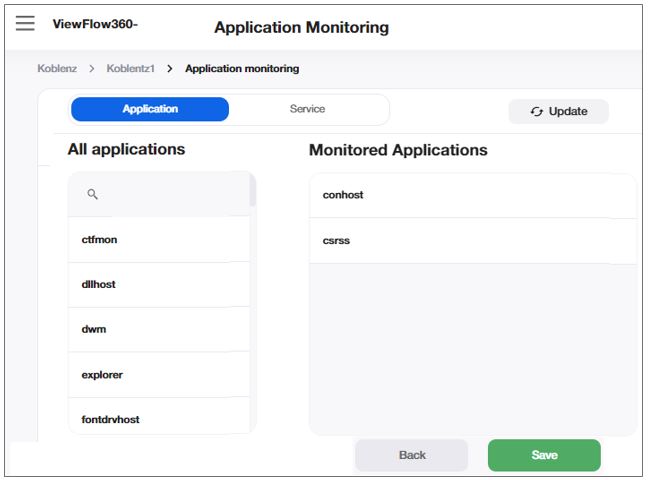
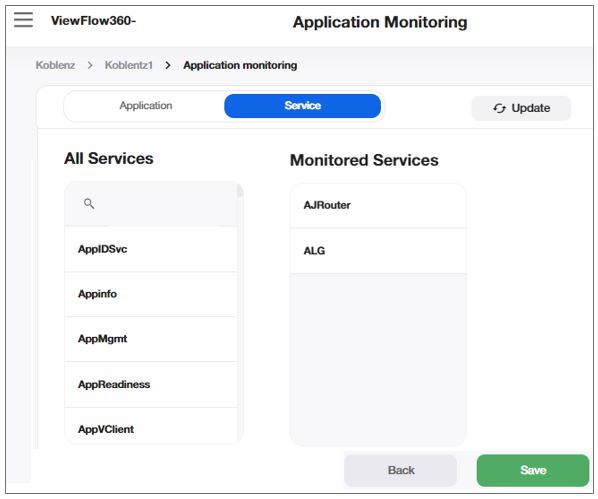
You can drag from “All Applications/ All Services” list to “Monitored Applications/ Services” list the applications to monitor in case they are down.
Once you complete the drag and drop of the respective applications or services to fill in the table, you can click Update to refresh the list of applications/services in order to get the newest list.
Services error gets reported identically to the applications.
In addition, Services generates identical e-mails as application monitoring.
The following screen shows the error message. For instance, the application is not responding.
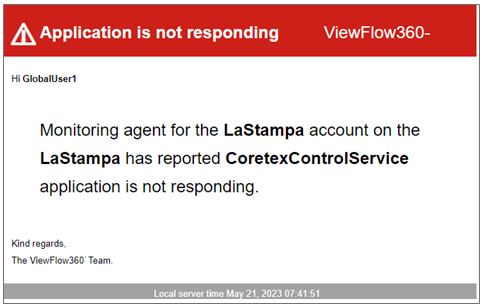
The following screen shows a recovery message. For instance, the application is responding, as appropriate.
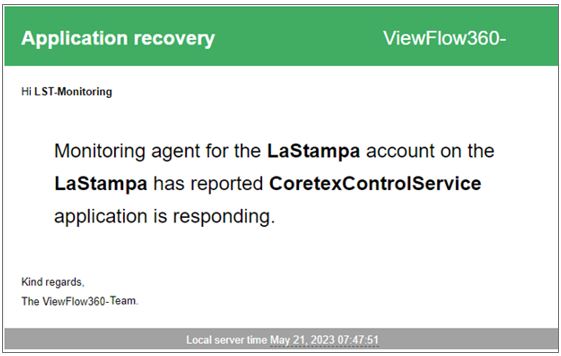
Click “Save” to update the changes.
The Administrator/Global/Account and other users of this account gets an e-mail indicating that the application is down, and an alert gets generated in “Alert Dashboard”. It takes 5 minutes to get the e-mail and notification to appear.
Only someone with administrator prerogative (root administrator or global user with read/write permissions) can edit the account. To view and edit the contract parameters, select the Edit Account icon against the respective account in the > Accounts and Users > Accounts screen.
Contact Parameters
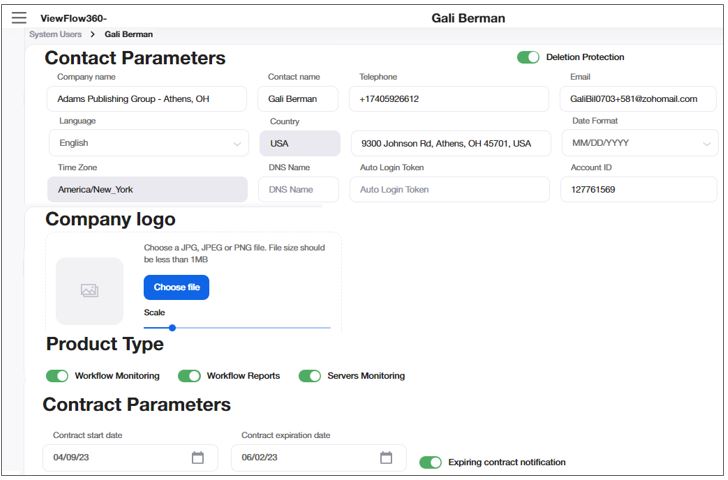
|
Field |
Description |
|---|---|
|
COMPANY NAME |
The name of the company which uses cloud Coretex services. Maximum 60 characters. |
|
CONTACT NAME |
The name of the contact person. Maximum 25 characters. |
|
TELEPHONE |
The telephone number of the contact person.
|
|
|
The email of the contact person, which is also their login name to VF360. |
|
LANGUAGE |
Select the language to use in the VF360 reports in the drop-down list. |
|
COUNTRY |
The company’s country. It is automatically filled in according to the address you enter. |
|
ADDRESS |
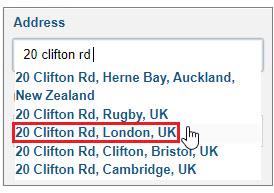
The company’s address. When you start typing the address, the auto complete function creates a drop-down list of possible addresses. You must type enough information for the auto complete function to find the exact address and show it in the list. After the address is complete, VF360 automatically fills in the Country and the Time Zone. IMPORTANT: You must find and select the address in the list, otherwise the Country and the Time Zone are not correctly filled in. In the example below, the Country becomes UK and the Time Zone is Europe/London.
|
|
DATE FORMAT |
The format of the date as it appears in VF360. The options are MM/DD/YYYY and DD/MM/YYYY |
|
TIME ZONE |
The time zone of the account's location. It is automatically filled in according to the address you enter. |
|
DNS NAME |
The DNS name of the monitored product (the Coretex system) the account uses. |
|
AUTO LOGIN TOKEN |
The login token which allows the account to automatically log into Coretex. |
|
ACCOUNT ID |
When a system administrator who has permission to create accounts in VF360 enters a new account, they assign this account an ID number which is the same unique number this account has in the Product system, for billing activities, or for any other program it is part of the software environment. If, for example, in the Apogee system Account1 has the Account ID 1234, they are assigned the same ID (1234) in VF360 also. Only digits are allowed in this field, maximum 10 characters. |
|
COMPANY LOGO |
Optional field. Insert the account’s logo, which subsequently appears on the reports. To add a logo, select Choose File and browse for the logo picture. It can be a JPG or PNG file, not larger than 1MB. You can Scale the picture to appear larger or smaller in the gray frame. |
|
WORKFLOW MONITORING |
Turn this toggle button ON if you want to include workflow monitoring in the dashboard. |
|
WORKFLOW REPORTS |
Turn this toggle button ON if you want to include workflow reports in the dashboard. |
|
SERVERS MONITORING |
Turn this toggle button ON if you want to include server monitoring in the dashboard. |
|
CONTRACT START DATE |
Select in the calendar the start date of the account’s contract for VF360 usage. |
|
CONTRACT EXPIRATION DATE |
Select in the calendar the expiration date of the account’s contract for VF360 usage. |
|
EXPIRING CONTRACT NOTIFICATION |
Turn this toggle button ON if you want the account to receive email notifications one month, two weeks and one day prior to the VF360 contract expiration. |
|
DELETION PROTECTION |
Protection against deletion. If ON (button on green background), the administrator cannot delete this user. |
Report and Notification Parameters
Select the time (in hh:mm) when you want to issue the daily (24-hour) report. For example, if you select 16:00, the report is issued at 16:00, for the previous 24 hours.
VF360 can also issue a partial report, for part of the 24-hour cycle. For example, if you set the Partial Report Start Time at 10:00, VF360 issues a partial report at 10:00am, for the period between 16:00pm on the previous day, till 10:00am on the current day.
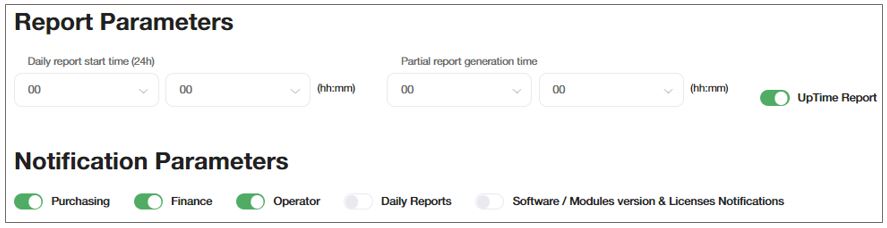
|
Field |
Description |
|---|---|
|
DAILY REPORT START TIME |
The time of the day to issue the daily report. The field contains two drop-down lists, for hours and minutes. |
|
PARTIAL REPORT GENERATION TIME |
The time of the day to issue the partial report. The field contains two drop-down lists, for hours and minutes. |
|
UPTIME REPORT |
Turn this toggle button ON if you want to include the UpTime Report in the Dashboard. |
|
PURCHASING |
Turn this toggle button ON if you want the account to receive email notifications:
|
|
FINANCE |
Turn this toggle button ON if you want the account to receive email notifications on credit purchase, for a prepaid credit program. |
|
OPERATOR |
Turn this toggle button ON if you want the account to receive email notifications:
|
|
DAILY REPORTS |
Turn this toggle button ON if you want the accounts who also have the Daily Reports toggle button ON, to receive daily reports regarding workflows. |
|
Software / Modules version & Licenses Notifications |
Turn this toggle button ON if you want the account to receive email notifications:
|
Flow Step Parameters
You must separately set up each flow step of every account. To add new step, select the  Add Stop option.
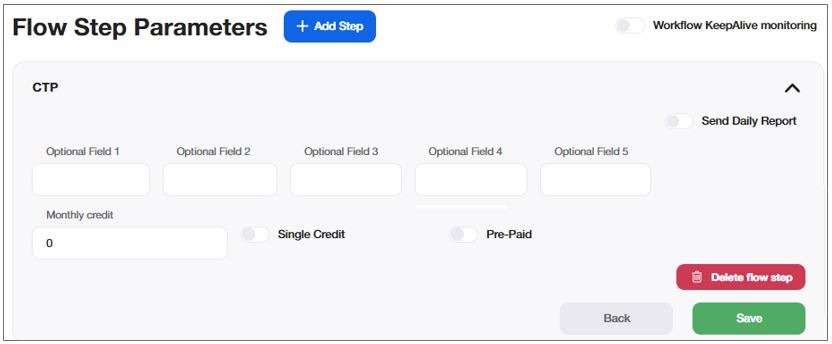
|
Field |
Description |
|---|---|
|
optional field |
Additional fields you can add to the Table View. You can rename them in |
|
Monthly Credit |
The monthly number of events to process in this flow step, as specified in your license. If this value is 0, this step type is only monitored for reporting purposes and does not appear in the credit deviation report in the dashboard. |
|
Send daily report |
Turn ON/OFF the daily report email for this flow step type. |
|
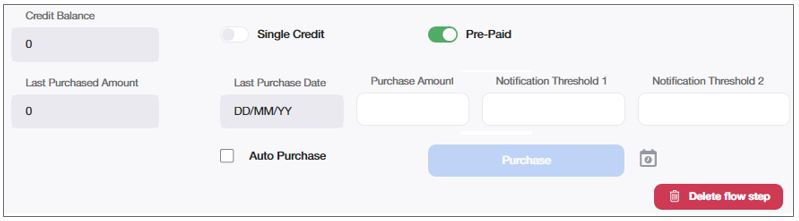
SINGLE CREDIT |
Turn ON to switch the monitoring of this flow step from a contract type, to a single credit program |
|
PRE_PAID |
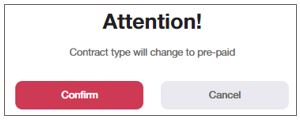
Turn ON to switch the monitoring of this flow step from a contract type, to a pre-paid program. Confirm the modification:
If you confirm, the Monthly Credit field is hidden and the Credit Balance field appears.
The Credit Balance is calculated as the total amount of all the purchases minus all the used credits. The number can be negative if the used credit exceeds the purchased credit.
If Auto Purchase is enabled, the value in the Purchase Amount field is automatically purchased.
|
|
WORKFLOW KEEPALIVE MONITORING |
Turn ON to enable the workflow KeepAlive alerts. |
|
Send daily report |
Turn ON/OFF the daily report email for this flow step type. |
|
delete Flow Step |
Delete the flow step. |
Select Save to save the changes.
To add a flow steps to be monitored, select the Add icon and select the step from the drop-down list of flow steps which have not been added to this section yet.
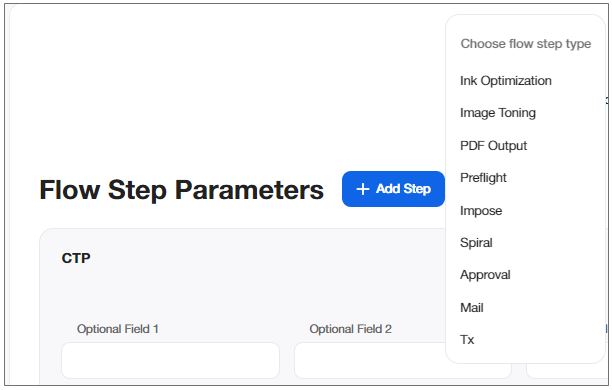
The administrator sets the list of flow steps in Settings > Flow Step Settings.
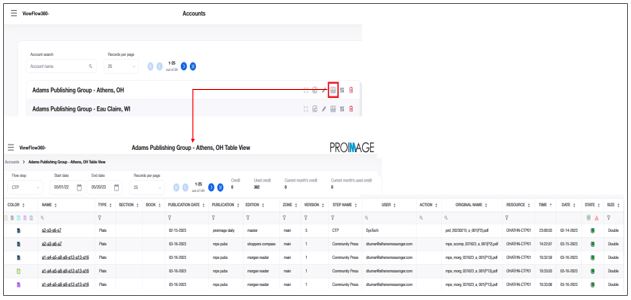
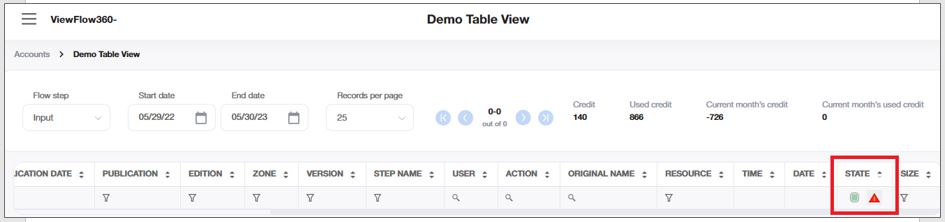
To view the activity of a specific account during a period of time, select the Account Table View  .
.
Select in the drop-down list in the Records per Page field, the number of table rows you want to display on the screen at a time. To browse through the pages, use the buttons.
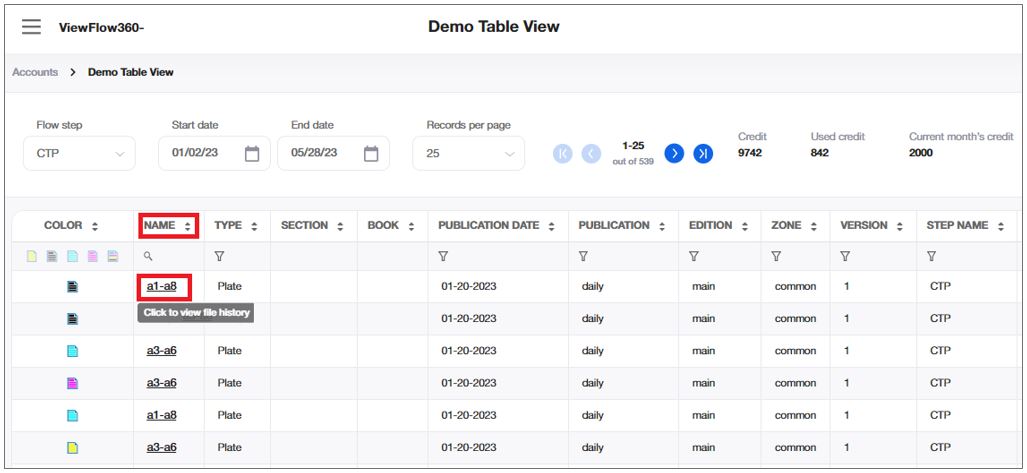
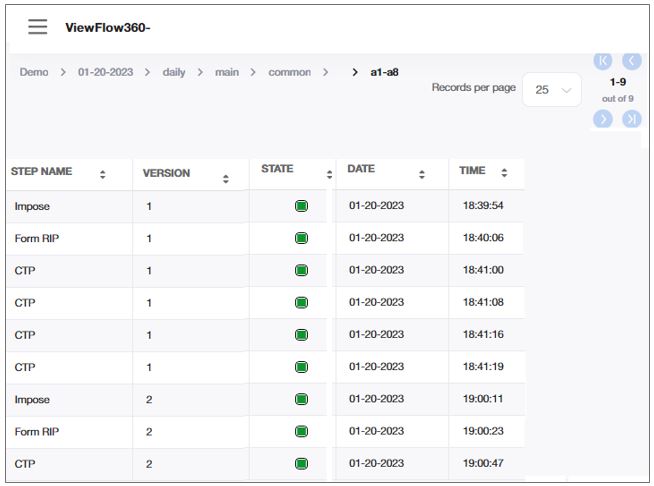
You can view the file history by hovering over the "Name" column and click the hyperlink. This displays the History View as shown below.
|
Field |
Description |
|---|---|
|
flow step |
Select the flow step whose information to display. |
|
start date |
Set the first day of the period whose data to display. |
|
end date |
Set the last day of the period. The default is the past 24 hours. For example, if the current day is June 10th, the Start Day is June 9th and the End Day is June 10th. |
|
credit |
The number of credits (processed events) you have purchased for the selected period, for the selected flow step. |
|
Used Credit |
The number of events actually processed in this flow step, within the selected period. |
|
Current Month’s Credit |
The credit you have purchased for the current month. |
|
Current Month’s Used Credit |
The credit you have used in the current month. |
|
records Per Page |
The number of table entries displayed on the screen at a time. |
|
Of … Records |
The total number of recorded entries. |
|
object |
The event type processed in this flow step. The options are page, page separation, forme, forme separation, plate. |
|
name |
The name of the processed object, as it appears in Coretex. For example, 00B1 can be the number of a page. |
|
publication date |
The date of the publication of the processed event. |
|
publication |
The name of the publication of the processed event. |
|
edition |
The name of the edition of the processed event. |
|
zone |
The name of the zone of the processed event. |
|
version |
The version of the processed event. For example, the third version of a page is represented by the number 3. |
|
step name |
The name of the step which processes the event. |
|
user |
The user who performed the manual action. |
|
Action |
Enter the manual action performed in the flow step. The options are Redo and Empty. |
|
original name |
The name of the file which arrives to the Coretex HotFolder. |
|
resource |
The resource which performs the processing. |
|
time |
The time the object was processed. |
|
state |
The event status after processing. The status can be Passed ( |
|
SIZE |
The size of the processed object. The options are Single and Double. |
The default value of the past 24 hours is affecting both Start Date and End Date for the first time the Table View is opened. The following times the tool remembers the last selected flow step and the time period.
Most of the columns have a filtering option, using one of two types of filter:
A dynamic search filter, which searches for a specific string as you type it.
Filters which allow you to select value/values available in that column.
This table extracts the information it displays from the XML status reports it receives from the Coretex system for every processed event.
Below is an example of a status report for an event processed in the CTP1 flow step:
<?xml version="1.0" encoding="utf-8" standalone="yes"?>
<events xmlns:xsi="http://www.w3.org/2001/XMLSchema-instance" xsi:noNamespaceSchemaLocation="events.xsd">
<event account_name="Account1" type="plate" color="black" name="a6-a9" publication_date="2020-10-03" publication_name="pub1" edition_name="edition1" zone_name="zone2" version="1" workflowstep_type="ctp" workflowstep_name="CTP" user="prepress@suncommunitynews.com" audit="" original_name="1003_VN_A006.pdf" resource_name="DPENY-PRESSREGISTER-01" time_stamp="2020-09-30 12:37:09" state="ok" option1="Press 1:tower:cylinder_black:null:TOP" option2="2020-10-03T0:00:00" option3="" option4="" option5=""></event>
</events>
Select  to save the data for the selected time period into an Excel file and save the resulted file at a location of your choice.
Select  to navigate to the Account Dashboard.
Tooltip: You can view the error description to an Error State by hovering over the respective error state in Table View. The description is sent in the XML format and sent from NWX for each event.
This view offers a graph representation of a few parameters per account, for the selected flow step.
Select the flow step in the Flow step drop-down list.
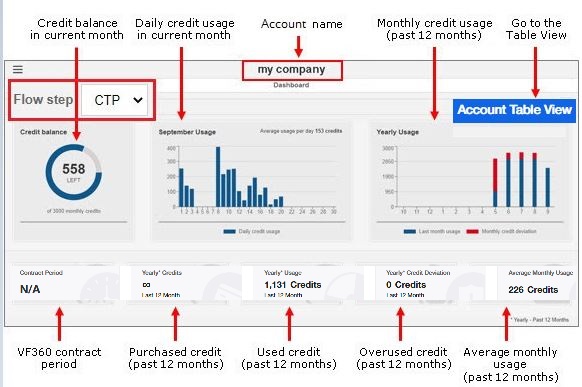
|
Field |
Description |
|---|---|
|
Flow Step |
Select the flow step whose statistics to display. |
|
Credit Balance |
The used and overused credit in the current month, taking into account the monthly allocated credit (the monthly number of credits you purchased for that flow step). The used credit appears in blue, while the overused credit, in red. |
|
[Current month] usage |
The daily credit usage in the current month. |
|
Yearly Usage |
The monthly credit usage for the past 12 months. In blue, the credits used within the monthly allocated (purchased) credit. In red, the overused monthly credit. |
|
Contract Period |
The start and expiration dates of the VF360 license. |
|
Yearly Credits |
The credit you have purchased over the past 12 months. |
|
Yearly Usage |
The credit you have actually used over the past 12 months. |
|
Yearly Credit Deviation |
The total number of credits you have used in addition to your purchased credit, over the past 12 months. |
|
Average Monthly Usage |
The monthly average used credit for the past 12 months. |
You can select the  to navigate from the Account Dashboard View straight to the Account Table View.
If the account has Deletion Protection, you cannot delete the entry. The administrator sets the Deletion Protection when creating a new account, in the Contact Parameters section.
Menu icon > System Users > Add Account > Contact Parameters > Deletion Protection ON/OFF.
You can modify it at any time in the Edit Accounts window.
Menu icon > Accounts and Users > Accounts Edit Account > Contact Parameters > Deletion Protection ON/OFF.
Use the System Users view by navigating to > Accounts and Users > System Users to see all the users registered in the system along with their details in one page, and review their latest activity in the system. In addition, you can use this option to add various user types to the system.
You can add the following user types based on your user access/ privileges:
Global User
Monitoring User
Organization Admin
Organization User
Account
Account User
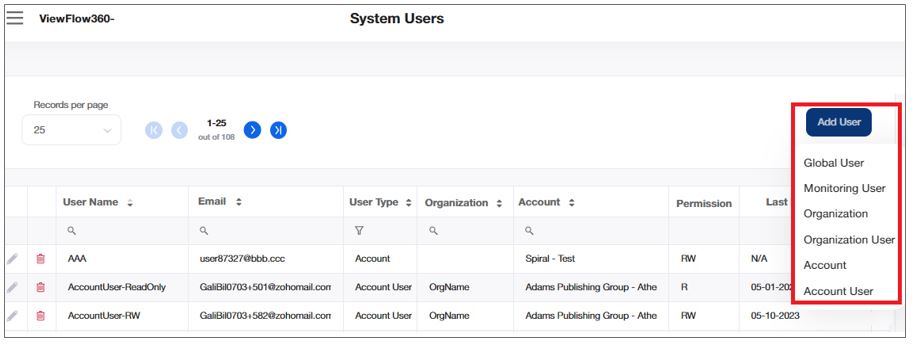
Select in the drop-down list in the Records per Page field, the number of table rows you want to display on the screen at a time. To browse through the pages, use the buttons.
Limit the display to one or more items by using the search icon, where available.
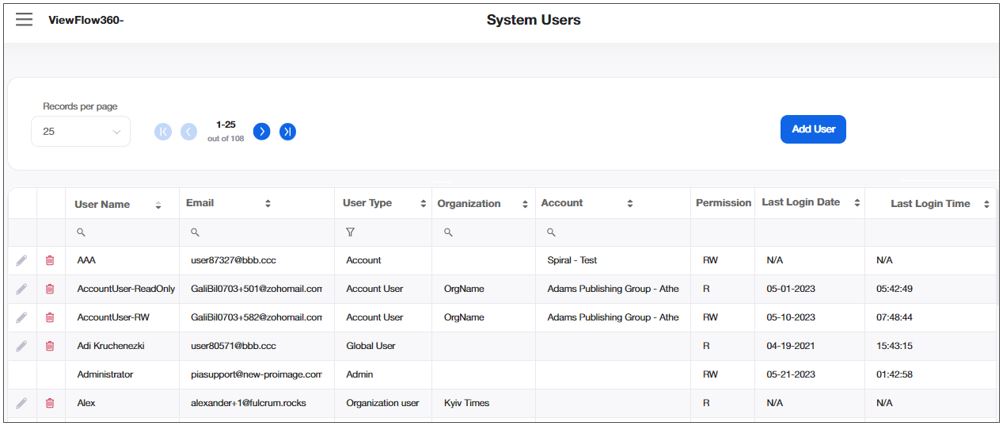
|
Field |
Description |
|---|---|
|
USER Name |
The user’s name, as it appears in the User Account:
|
|
|
The user’s email, as it appears in the User Account, in the Email field. |
|
USER TYPE |
The user's role in the system:
|
|
ORGANIZATION |
This field is filled if account and account user belongs to an organization. |
|
ACCOUNT |
This value displays the account name based on the user permission.
|
|
PERMISSION |
The user's permission, as set by the root administrator in the Permission field in the Account Parameters. Can be R (read - view only the data in the system) or RW (read/write - view and edit the data in the system). |
|
LAST LOGIN DATE |
The last date when the user logged into the system. The date format is the one set in the Account Parameters for this user. |
|
LAST LOGIN TIME |
The last time when each user has logged in to the system. Time is displayed in UTC 0. |
For each account, the root administrator can define Global Users who have partial administrator permissions. They can view all the users of all the accounts, their table view, dashboard view, and MAP dashboard. From the MAP dashboard they access the sites, to access the site’s URL.
Select in the drop-down list in the Records per Page field, the number of table rows you want to display on the screen at a time. To browse through the pages, use the buttons.
The global users cannot view or modify the respective accounts.
There are two levels of global users:
· With Read Only permissions: can only see the Account's view.
· With Read/Write permissions: can see and edit the Account's view.
To define a global user, navigate to > Accounts and Users > System Users > Add User > Global User and fill in the information in the User section.
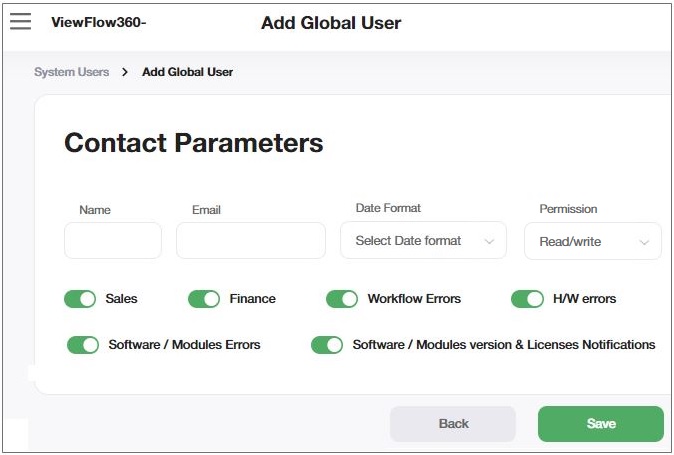
|
Field |
Description |
|---|---|
|
Name |
The global user’s name. The maximum length is 25 characters. |
|
|
The global user’s email. |
|
Date format |
The format of the dates this user sees in the system. The options are DD/MM/YYYY and MM/DD/YYYY. |
|
Permission |
The permissions this global user has. The options are Read only (view the accounts’ data) and Read/write (view and edit the account's data). |
|
SALES |
Turn the toggle button ON if you want this user to receive sales notifications. |
|
FINANCE |
Turn the toggle button ON if you want this user to receive finance notifications. |
|
WORKFLOW ERRORS |
Turn the toggle button ON if you want this user to receive workflow error notifications. |
|
H/W ERRORS |
Turn the toggle button ON if you want this user to receive hardware error notifications. |
|
SOFTWARE/ MODULES ERRORS |
Turn the toggle button ON if you want this user to receive software and module error notifications. |
|
SOFTWARE/MODULES VERSION & LICENSES NOTIFICATIONS |
Turn the toggle button ON if you want this user to receive notifications regarding software versions and licences. |
Select Save to save the user or the changes.
Select Delete User if you want to delete a user. You must confirm your action in the pop-up window.
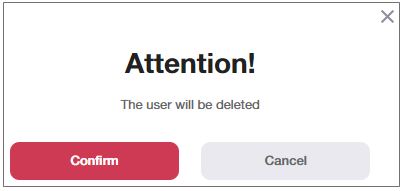
The monitoring users have privileges restricted to the accounts selected in the “Accessible Accounts”.
Only the Root Administrator and Global User can create / manage the Monitoring Users.
To define a monitoring user, navigate to > Accounts and Users > System Users > Add User > Monitoring User and fill in the information in the User section.
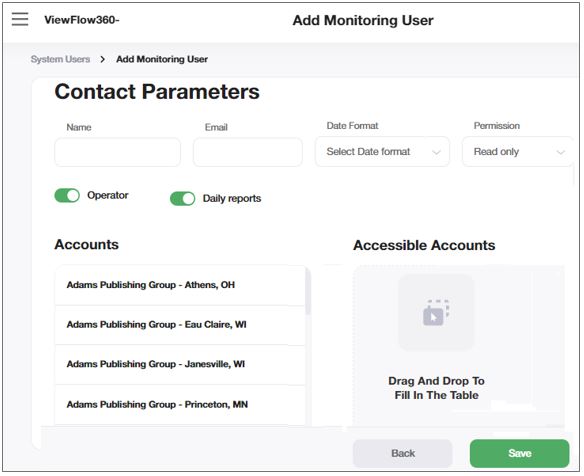
|
Field |
Description |
|---|---|
|
NAME |
Enter the name of the monitoring users (maximum 25 characters). |
|
|
Enter the email of the monitoring user. |
|
DATE FORMAT |
The format of the date this user sees everywhere in VF360. The options are MM/DD/YYYY or DD/MM/YYYY. |
|
PERMISSION |
The user's permission, as set by the root administrator in the Permission field in the Account Parameters. Can be R (read, the user can only view information) or RW (read/write, the user can view and edit information). |
|
OPERATOR |
Turn this toggle button ON if you want the account to receive email notifications:
|
|
DAILY REPORTS |
Turn this toggle button ON if you want the accounts who also have the Daily Reports toggle button ON, to receive daily reports regarding workflows. |
|
ACCOUNTS |
The list of all the accounts in VF360. |
|
ACCESSIBLE ACCOUNTS |
The list of accounts the monitoring user has access to. The list is empty for a newly created administrator. You can add monitoring users by dragging them from the Accounts list and dropping them in the Accessible Accounts area. |
Select Save to save the user or the changes.
Select Delete User icon against the respective global user if you want to delete a user. You must confirm your action in the pop-up window.
To add a new Organization Admin User, navigate to > Accounts and Users > System Users > Add User > Organization.
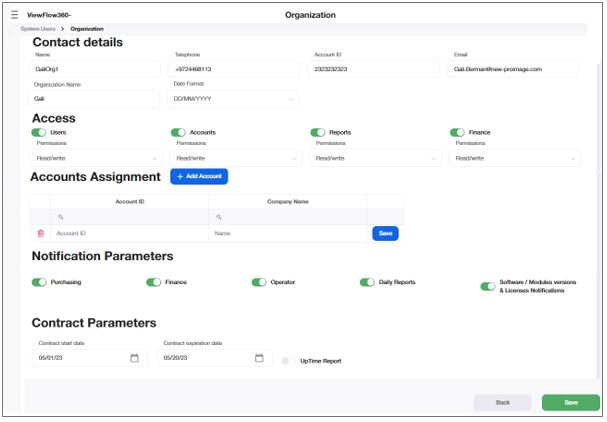
|
Field |
Description |
|---|---|
|
NAME |
The name of the organization admin. Maximum 25 characters. |
|
TELEPHONE |
The telephone number of the contact person.
|
|
ACCOUNT ID |
When an organization administrator who has permission to create accounts in VF360 enters a new account, they assign this account an ID number which is the same unique number this account has in the Product system, for billing activities, or for any other program it is part of the software environment. If, for example, in the Apogee system Account1 has the Account ID 1234, they are assigned the same ID (1234) in VF360 also. Only digits are allowed in this field, maximum 10 characters. |
|
|
The email of the contact person, which is also their login name to VF360. |
|
ORGANIZATION NAME |
The name of the organization. |
|
DATE FORMAT |
The format of the date as it appears in VF360. The options are MM/DD/YYYY and DD/MM/YYYY. |
|
USERS |
Turn this toggle button ON if you want to give access to Users. |
|
ACCOUNTS |
Turn this toggle button ON if you want to give access to Accounts. |
|
REPORTS |
Turn this toggle button ON if you want to give access to Reports. |
|
FINANCE |
Turn this toggle button ON if you want to give access to Finance. |
|
PERMISSIONS |
The access permission to be granted, such as Read Only, and Read/Write. |
|
ADD ACCOUNT |
By clicking Add Account, you can add an account under this organization.
|
|
PURCHASING |
Turn this toggle button ON if you want the organization to receive email notifications:
|
|
FINANCE |
Turn this toggle button ON if you want the organization to receive email notifications on credit purchase, for a prepaid credit program. |
|
OPERATOR |
Turn this toggle button ON if you want the organization to receive email notifications:
|
|
DAILY REPORTS |
Turn this toggle button ON if you want the organization who also have the Daily Reports toggle button ON, to receive daily reports regarding workflows. |
|
Software / Modules version & Licenses Notifications |
Turn this toggle button ON if you want the organization to receive email notifications:
|
|
CONTRACT START DATE |
Select in the calendar the start date of the organization's contract for VF360 usage. |
|
CONTRACT EXPIRATION DATE |
Select in the calendar the expiration date of the organization's contract for VF360 usage. |
|
UPTIME REPORT |
Turn this toggle button ON if you want to include Uptime Report in the dashboard. |
By providing appropriate inputs and clicking Save, the Organization Admin User is added to the system.
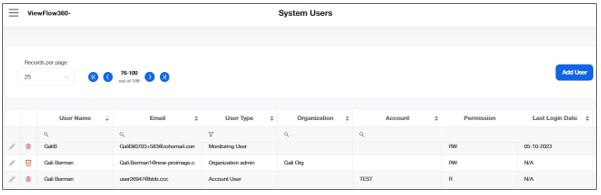
The Organization Admin User can add the user roles, such as Organization User, Account, and Account User in the system under their respective organization.
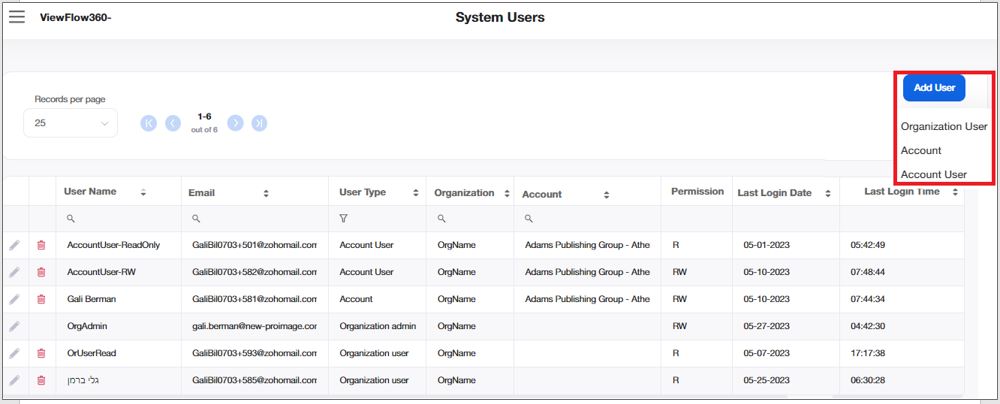
To add a new account for your organization, navigate to > Accounts and Users > System Users > Add User > Account.
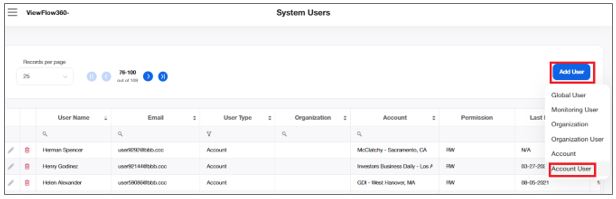
|
Field |
Description |
|---|---|
|
USER NAME |
The name of the organization admin. Maximum 25 characters. |
|
|
The email of the contact person, which is also their login name to VF360. |
|
USER TYPE |
The user type, such as Account and Account User. |
|
ORGANIZATION |
The name of the organization to which the account belong. |
|
ACCOUNT |
The name of the account to which the account user belong. |
|
PERMISSION |
The access permission granted for the Account User, such as Read/Write or Read Only. |
|
LAST LOGIN DATE |
The login date that the Account User last logged-in. |
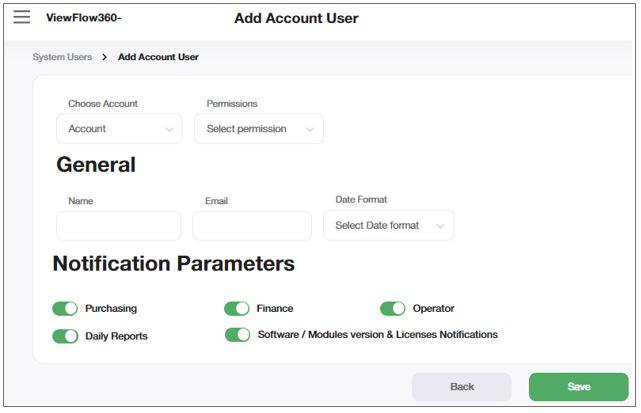
You can enter the required information in the Add Account User Window.
|
Field |
Description |
|---|---|
|
PERMISSIONS |
The access permission to be granted for the Account User, such as Read/Write or Read Only. |
|
NAME |
The name of the account user. |
|
DATE FORMAT |
The format of the date as it appears in VF360. The options are MM/DD/YYYY and DD/MM/YYYY. |
|
PURCHASING |
Turn this toggle button ON if you want the account user to receive email notifications:
|
|
FINANCE |
Turn this toggle button ON if you want the account user to receive email notifications on credit purchase, for a prepaid credit program. |
|
OPERATOR |
Turn this toggle button ON if you want the account user to receive email notifications:
|
|
DAILY REPORTS |
Turn this toggle button ON if you want the account user who also have the Daily Reports toggle button ON, to receive daily reports regarding workflows. |
|
Software / Modules version & Licenses Notifications |
Turn this toggle button ON if you want the account user to receive email notifications:
|
By providing appropriate inputs and clicking Save, the Account User is added to the respective Account. For more information in the field level details and to edit the account details, refer Edit Accounts.
User type Account can add their respective Account Users to the system.
 ) or Failed (
 ).
).