 IMPORTANT:
Global User Guide
The root administrator can define Global Users, who have partial administrator privileges. They can see all the accounts in the system and their data, and, if they have red/write permissions, they can also make changes.
There are two types of global users:
Users with read/write permission, who can see all the available information, can add or delete account users, and can make/save changes.
Users with read-only permission, who cannot see all the information in some of the screens, cannot add or delete account users, and cannot make changes (the Save button is not available).
IMPORTANT:
This document refers to the Global Users with read/write permission.
The Global Users with read-only permission only have a sub-set of features available. If you cannot see the all the features described here, it means you have read-only permission.
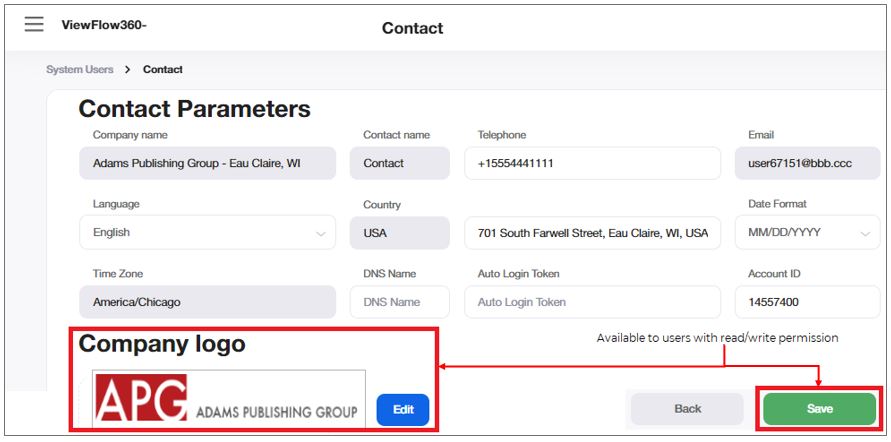
For example, in the Account Parameters, the users with read-only permissions:
Do not see the Company Logo section (where the users with read/write permissions can modify the logo).
Although they can edit some of the fields, they do not have a Save button to save the changes.
When you are defined as a new user in VF360, you receive a New Account notification from the VF360 support team at the email address set as your VF360 login name. For information regarding the login process, see Log Into ViewFlow360.
After you enter the system, to navigate among the VF360 screens, select the  Menu icon and select the view you need. The default view is the general Dashboard which offers a big picture of all the accounts in VF360 and their essential information.
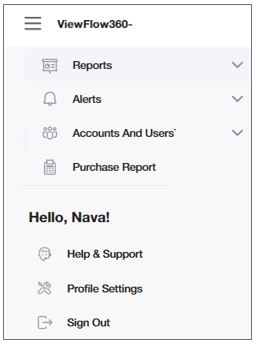
When you log into VF360, the default screen is the Dashboard, which offers a big picture of all the accounts and their essential information.
For information regarding the Reports, see Set_Up_the_VF360_System_Reports.
For information regarding the Alerts, see Set_Up_the_VF360_System_Alerts.
For information regarding the Accounts and Users, see Global Users - Accounts and Users.
In this you must enter the general settings of VF360, such as the root administrator information, the global hot folder, the map dashboard settings and so on.
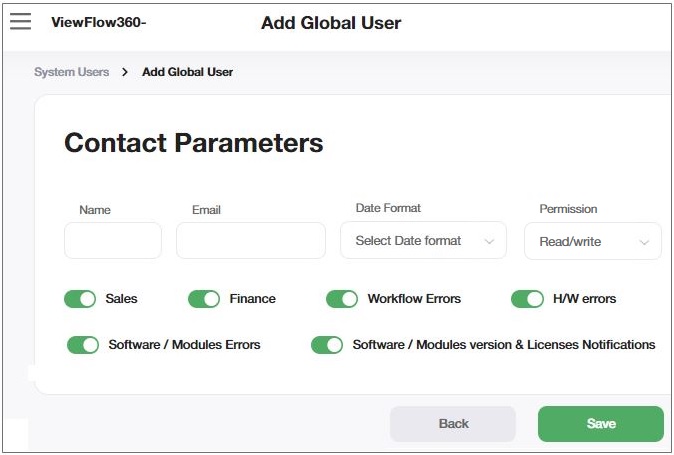
|
Field |
Description |
|---|---|
|
Name |
The name of the global user. |
|
|
The email of the global user, as defiled by the root administrator in Menu > Accounts and Users > System Users > Global Users. |
|
Date Format |
The format of the dates this user sees in the system. The options are DD/MM/YYYY and MM/DD/YYYY. |
|
PERMISSION |
The access permission for the global user, such as Read Only or Read/ Write. |
|
SALES |
|
|
FINANCE |
|
|
WORKFLOW ERRORS |
See details in the Alerts Dashboard. |
|
H/W ErrorS |
See details in the Alerts Dashboard. |
|
SOFTWARE/MODULES ERRORS |
See details in the Alerts Dashboard. |
|
SOFTWARE/MODULES VERSION & LICENSES NOTIFICATIONS |
|
Turn ON the switch of the notifications you want to receive.
Select Save to save the changes.
The types of messages and notifications you receive are determined by the type of user you are (global user, account user, view-only user) and the notification options the administrator has selected for your user in VF360.
For the complete set of messages, see The VF360 Notifications.