Log into ViewFlow360
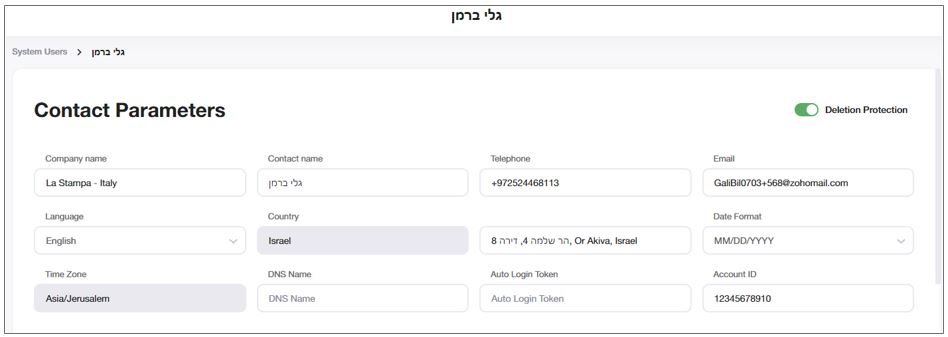
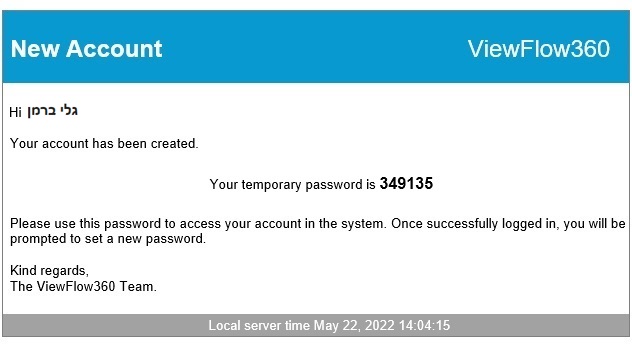
When the administrator or another user with the required permissions defines you as a new user in VF360, you receive a New Account notification from the VF360 support team at the email address set as your VF360 login name.
For example, the administrator created a user whose name is MyGlobal2 and whose login and notification email is ale@newpro.com.
VF360 sends the following email to ale@newpro.com:
 IMPORTANT:
The temporary password is only valid for a short time.
If it expires, you must request a new password from the VF360 support team.
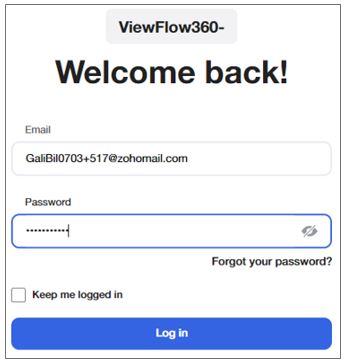
Open VF360 in your browser and enter your login email and the temporary password you received. Select Log in.
Next is the First Login screen, where you must change your password:
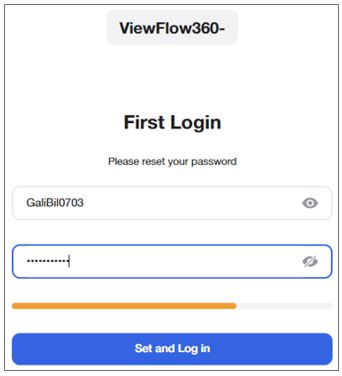
The password strength meter under the Confirm Password field has the following criteria:
LOW - red colour: password has less than 8 symbols and does not have at least one upper letter and special characters. Registration with LOW strength meter is not allowed (validation error is displayed for password field).
MEDIUM - orange colour: password has at least 8 symbols and at least one upper letter or at least one special character. Registration with MEDIUM strength meter is allowed.
HIGH - green colour: password has at least 8 symbols and at least one upper letter and at least one special character; Registration with HIGH strength meter is allowed.
Select Set & Log in to navigate to the login screen where you log into VF360 with your new password, or Return to log in to return to the screen where you enter the temporary password received in the email.
If you select Set & Log in and your password is validated, you must re-enter your new password in the login screen to access VF360.
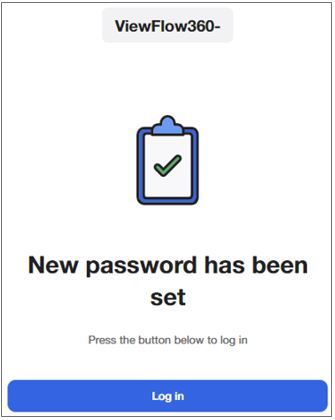
Check the Keep me logged in box to save your credentials for an easier login later on.
For a complete list of the notifications, see The VF360 Notifications.
The types of messages you receive are determined by the type of user you are (monitoring user, organization admin, organization user, account, and account user) and the options the administrator has selected for you in VF360.
After you have set your password, you can log into VF360:
Type the VF360 URL in your browser to access the VF360 login screen.
In the Email Address field enter your email address (which is also your user name) and in the Password field enter your password.
Check the box Keep me logged in to save your login information (optional).
Select the language you want to use in your VF360 GUI.
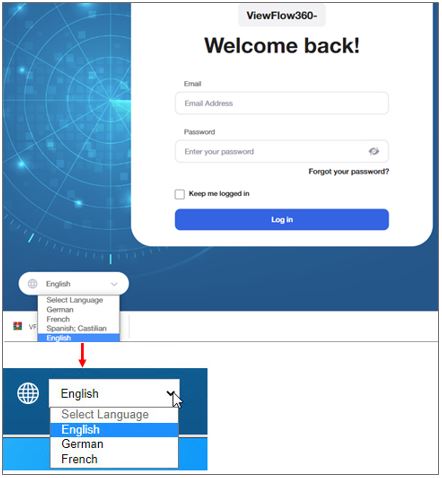
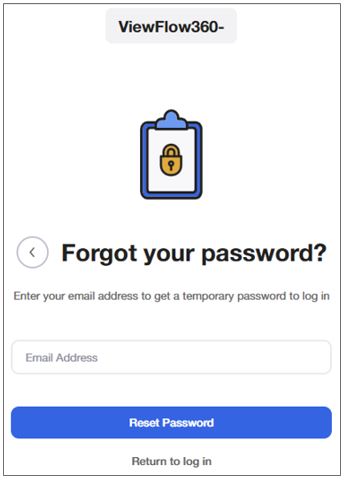
To reset your password, select Forgot your password. A new temporary password is sent to the email you enter in this field, and you can use it to set a new password as described above.
After you enter the email address, you receive the following confirmation:
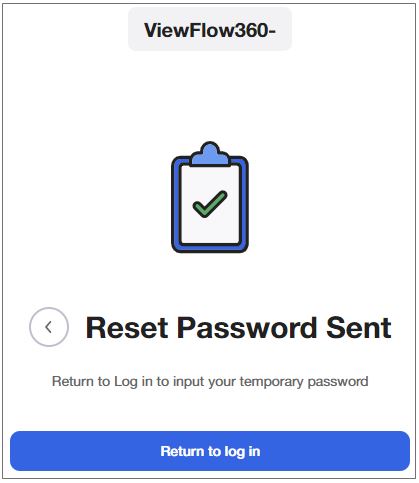
Copy the new temporary password from the email you receive and perform the first login again to change it to a permanent password.