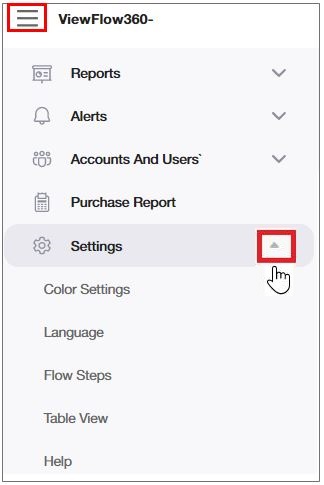
 Menu > Settings.
The VF360 System Settings
The VF360 settings decide the look and feel of the tool, from the color scheme to the language and the way the content is displayed.
To access the settings on VF360, select Menu > Settings.
The color settings refer to the company logo which appears on every screen of the VF360 GUI and to the background of the login screen.

To add a color set for a new account:
Select Add new company.
Enter in the Product name field a name of your choice.
Enter the Support email. This refers to the email that you send with information to contact support in case there is a need for Help.
Select Choose file under the Logotype area to browse for the picture of the company’s logo. This can only be in JPEG or PNG format and its size must be less than 1MB.
Select Choose file under the Background area to browse for the picture representing the background on the login screen. This can only be in JPEG or PNG format and its size must be less than 1MB.
Select Save to save the new setup.
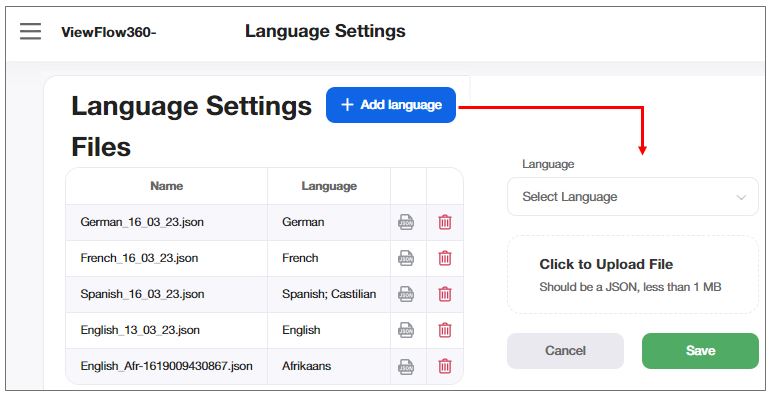
In the Language Settings section you define a set of languages from which the users of VF360 can select the language of the VF360 GUI (on the login screen) and the language to use in the reports (in the Account Parameters).
You must prepare a separate JSON file with the translation of the English text to the other language for each language you want to use.
To add a new language to the language set:
Select  Add language.
Select Choose file in the Load setup file section, to browse for the JSON file which contains the translation of the English expressions to the new language.
In the Select Language field, select the required language in the drop-down list.
Select Save to save the new setup.
To delete a language, select  in the row representing that language.
To modify a language setup, select the  icon to download the JSON translation file for safekeeping, delete the existing setup and then add it again with the modified definition.
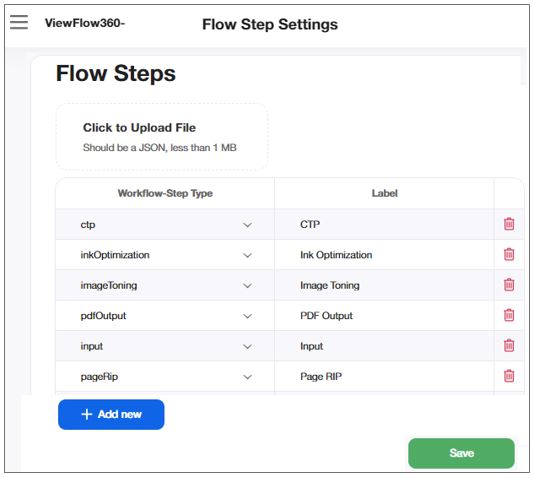
In this section you enter the list of the monitored flow steps.
You can add them one by one by preparing a JSON file which contains all the flow steps and then load it into the server by using the Choose file button near the Load setup file field.
|
FIELD |
DESCRIPTION |
|---|---|
|
WORKFLOW-STEP Type |
Workflow-Step Type is the name of the flow step as it appears in the Table View and in the reports VF360 generates. |
|
LABEL |
Label is the name of the flow step as it appears in the XML status reports which arrive from Coretex for each processed event. |
Select Save to keep the configuration.
In this section you enter the names and the order of the columns in the Account Table View (Column header), in the Coretex status reports (Column name in XML), and the Filter type of each column. The information displayed on this screen is based on a JSON format file organized in sections, each section in the file representing a column in the Account Table View.

|
FIELD |
DESCRIPTION |
|---|---|
|
COLUMN NAME |
The section name in the JSON file. Each section includes three components, the Column name in XML, the Column header, and the Filter type on that specific column. |
|
COLUMN NAME IN XML |
Coretex sends to VF360 an XML status file for every processed event. In the status file, each column has a predefined fixed name, which can be different from the name you see in the VF360 Account table view. In this field is the column name as it appears in the XML report. |
|
COLUMN HEADER |
The header of each column as it appears in the Account Table View. |
|
FILTER TYPE |
The type of filter you can apply in this column in the Account Table View. Options:
|
|
FORMAT TYPE |
The format of the data. Options:
|
To add a column, select + Add column, and in the empty fields of the row, fill in the required information.
To delete a column, select the delete icon in the row representing that column.
To save the configuration, select Save.